This blog is part of my series on Devops for Networking. onePK is Cisco’s attempt to expose a standard set of APIs to configure and monitor across multiple different Cisco devices. Orchestration and automation applications can use these standard APIs to talk to Cisco devices. In this blog, I will cover a brief overview of onePK and how to get started with onePK to write applications on top of it.
OnePK overview:
Following block diagram from Cisco gives different blocks involved in onePK.
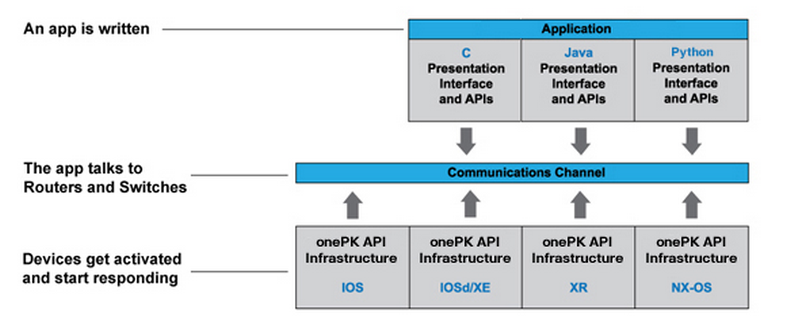
- Cisco devices across different OS have the onePK api supported.
- Communication layer is the secure RPC layer to talk to the device.
- Cisco has created SDK for different languages like C, Java, Python on top of which user can create applications.
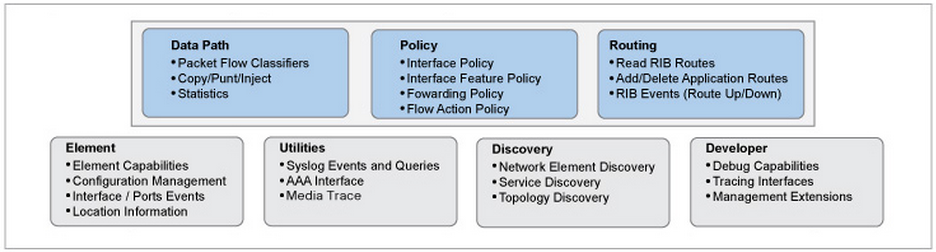
onePK functionality is organized into service sets. Following block diagram from Cisco describes the different service sets available.
What I have done:
Cisco provides an onePK All-in-one VM. This includes SDK for different languages, IOSv which is a network device emulator for IOS devices. I downloaded the VM from here and used it with Virtualbox.
- Start 3 node simulator by clicking on “start 3 node” icon. 3 Cisco simulated IOS devices will be created.
- Root certificate “ca.pem” is present by default in home directory.
- The 3 routers have ip address 10.10.10.[110,120,130].
- Execute sample tutorials from “/home/cisco/onePK-sdk-1.2.1.194/python/tutorials”
Following script shows simple connect and disconnect request to the device. This script uses functions from NetworkApplication class.
cisco@onepk:~/onePK-sdk-1.2.1.194/python/tutorials$ python BaseTutorial.py -a 10.10.10.130 -R ~/ca.pem
INFO:onep:BaseTutorial:Reading arguments...
Enter Username : cisco
Enter Password :
INFO:onep:BaseTutorial:Connecting to Network Element...
INFO:onep:BaseTutorial:We have a NetworkElement :
NetworkElement [ 10.10.10.130 ]

INFO:onep:BaseTutorial:Successful connection to NetworkElement -
INFO:onep:BaseTutorial:Done.
Following sample script shows an example of getting interface related information from device. This script uses functions from NetworkInterface class.
cisco@onepk:~/onePK-sdk-1.2.1.194/python/tutorials/interfaces$ python InterfaceAddressTutorial.py -a 10.10.10.130 -R ~/ca.pem
INFO:onep:InterfaceAddressTutorial:Reading arguments...
Enter Username : cisco
Enter Password :
INFO:onep:InterfaceAddressTutorial:Connecting to Network Element...
INFO:onep:BaseTutorial:We have a NetworkElement :
NetworkElement [ 10.10.10.130 ]

INFO:onep:BaseTutorial:Successful connection to NetworkElement -
Connected to network element 10.10.10.130

Printing interface address...
Interface - GigabitEthernet0/2	Address:10.0.2.18
Interface - GigabitEthernet0/1	Address:10.10.10.130
Interface - GigabitEthernet0/0	Address:10.10.30.130

Printing interface prefix...
Interface - GigabitEthernet0/2	Prefix:24
Interface - GigabitEthernet0/1	Prefix:24
Interface - GigabitEthernet0/0	Prefix:24

Setting IPv4 address of interface GigabitEthernet0/2
Successfully set the IP address of interface GigabitEthernet0/2
 to 10.0.2.18 prefix 24
Disconnecting from the Network Element
Using sample script as example, more complex applications can be developed.
Connecting to Nexus device:
The above example showed connecting to Cisco IOSv simulator device. I have a Nexus 3k device where I have enabled onePK and tried sample scripts provided with the SDK. Python SDK can be downloaded from here in case you dont want to download the complete all-in-one VM.
I enabled OnePK in Nexus 3k using following commands after which I was able to run the samples scripts against the device.
onep
transport type tls disable-remotecert-validation
With OnePK versions less than 1.3, security was not enabled by default. With versions >=1.3, TLS is enabled by default. 1 option is to obtain the certificate and use it and this is what is done with onePK VM where we use the certificate ca.pem. There is another option called TLS pinning which allows the client to trust all server connections and there is no need to obtain the certificate. This option can be used for development purposes. More details about this option can be found here. I have a sample Onepk Python program available here which can be used with any Cisco device where onePK is enabled. It is needed to install the Python OnePK SDK before running this program.
OnePK is a good attempt to provide common API across Cisco devices. Since the service set is not extensive and configuration is restricted to Cisco devices, I feel that its use becomes limited.
References:
- Cisco onePK overview
- onePK Python API reference
- onePK Python tutorials
- onePK design guidelines
- onePK All-in-one VM
- onePK Python SDK
- Using Cisco’s onePK with Python
Pictures used in the blog are from the references.


Cisco has formed SDK for different languages like Java,C and Python on top of which user can create many apps.Moveover you can down load many things from here. But because of some service limitations Cisco become limited.